Git Worktrees for AI Coding Agents: The Parallel Workflow
How Git worktrees let you run multiple AI coding agents in parallel in separate working directories. Learn the workflow, the tradeoffs, and the tools that automate it.
If you run more than one AI coding agent on the same repository, the single most useful tool you can learn is the Git worktree. It is the clean, native way to give each agent its own isolated place to work, so agents edit separate working directories. This guide explains what worktrees are, why they matter for agents, the exact workflow, and the tools that automate it. For the workflow around worktrees, see the complete guide to parallel coding agents.
What Is a Git Worktree?
A Git worktree is an additional working directory attached to the same repository. Instead of one checkout where you switch branches with git checkout, worktrees let you have several branches checked out at once, each in its own folder, all sharing the same underlying Git history.
Now feature-a and bugfix-123 each have their own directory. Edits in one do not touch the other, and both share the same .git data. When you are done, you remove the worktree and keep the branch.
Why Worktrees Matter for AI Agents
AI coding agents edit files and run commands autonomously. Run two agents in the same directory and they overwrite each other's work, fight over the branch, and produce a tangled mess. Worktrees solve this cleanly:
- Isolation: each agent gets its own directory and branch
- Parallelism: agents edit separate working copies
- Reviewability: each worktree produces its own diff you can review independently
- Scope: each change has a separate working copy; a worktree is not a security sandbox
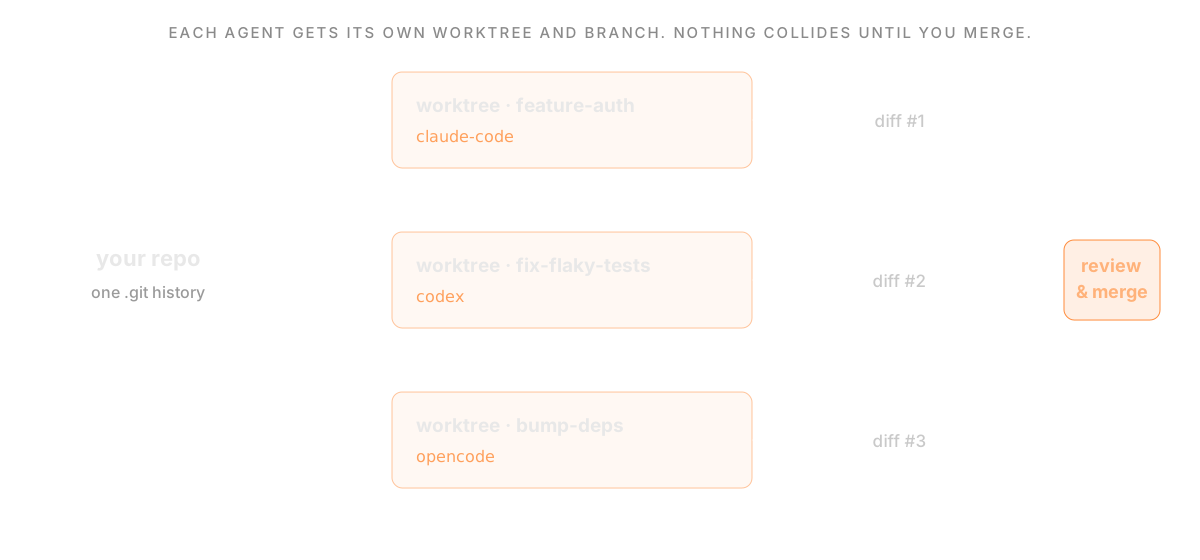 One repository fanning out into a Git worktree per agent, each on its own branch, producing independent diffs that converge into review and merge
This is why the strongest tools for running multiple agents, from Conductor to Orca to Superset, are built around a worktree per task. Even Cursor 2.0 adopted local worktrees for its parallel agents.
The Parallel Agent Workflow
1. Break work into independent tasks
Worktrees shine when tasks do not overlap: one agent writing tests, another refactoring a module, a third updating docs. Overlapping tasks that touch the same files heavily are better run in sequence.
2. Create a worktree per task
Give each agent its own worktree and branch. Manually, that is a git worktree add per task; with a workspace tool, it happens automatically when you start a task.
3. Launch an agent in each worktree
Run your agent of choice, such as Claude Code or Codex, inside each worktree with a narrow, focused prompt.
4. Review each diff independently
Each worktree produces its own diff. Review them one at a time and merge the ones you want. Isolation is what makes reviewing several parallel changes manageable.
5. Clean up
Remove finished worktrees with git worktree remove. The branch stays; only the extra directory goes.
What isolation does not cover
Worktrees share your machine and usually its credentials. They do not isolate databases, port numbers, provider quotas, or external services. Give previews distinct ports, separate writable test data, and run checks on the combined branches before accepting the result. For when to move past worktrees to clones, containers, or a remote host, and how to assign ports per worktree, see How to Isolate Parallel Coding Agents.
A Git merge can succeed while the application fails: one branch might rename an API field that another branch expects. Review contracts as well as textual conflicts. The three-task walkthrough includes scoped prompts and the review sequence.
Doing It Manually vs Automatically
You can run this whole workflow by hand with git worktree, tmux, and discipline. It works, and for two or three occasional agents it may be all you need. The friction grows with scale: creating, tracking, and cleaning up worktrees, launching agents, managing ports for dev servers, and reviewing many diffs becomes real overhead.
That is the gap workspace tools fill. Instead of managing worktrees by hand, they create one per task automatically, launch your agent inside it, and give you review and browser surfaces around the whole thing. See the roundup of best agentic IDEs for the options.
Where Superset Fits
Superset is built around this exact workflow. Each new local branch-based workspace gets a Git worktree, branch, and terminals. It runs any CLI agent, such as Claude Code, Codex, OpenCode, Cursor, or Gemini, adds a built-in diff editor, an in-app browser for docs and dev servers, port management, and MCP, and extends across remote and cloud hosts. It turns the manual worktree workflow into the default, so you can run many agents in parallel and review each one without the bookkeeping.
Cleanup is part of the workflow too. Deleting a workspace runs the project's teardown commands, bulk delete flags dirty or unpushed work before you confirm, and a deleted workspace can be restored on its original branch while that branch still exists. Worktrees created outside Superset can be imported as workspaces, and a sparse checkout setting limits new worktrees to the folders you list.
Worktrees in Your Editor
You do not have to give up your editor. Most editors open a worktree directory like any other folder, and there is steady demand for tighter worktree support in tools like VS Code. A common pattern is to let a workspace tool manage the worktrees and then open any one of them in VS Code, Cursor, JetBrains, or Xcode for a full editor view when you want to dig in.
Verdict
Git worktrees are the foundation of safe parallel AI coding. They give each agent its own isolated directory and branch so many agents can work one repository at once, each producing a reviewable diff. You can manage them by hand, or use a workspace like Superset that creates worktrees for new local branch-based workspaces around your CLI agents.
To go deeper, see How to Run Multiple Claude Code Agents in Parallel, How to Run Multiple OpenCode Agents in Parallel, and Best Agentic IDE in 2026.
Frequently Asked Questions
What is a Git worktree used for?
A Git worktree lets you check out multiple branches at once, each in its own directory sharing the same repository. For AI coding, it gives each agent an isolated place to work so agents do not edit the same working copy.
How do I run multiple AI agents without conflicts?
Give each independent writer its own Git worktree and branch. This prevents shared-checkout edits, but merging can still introduce conflicts or incompatible behavior. Do it manually with git worktree add, or automatically with a workspace like Superset that creates worktrees for new local branch-based workspaces.
Do AI coding tools use Git worktrees?
Many do. Conductor, Orca, Crystal, and Superset are built around a worktree per task, and Cursor 2.0 uses local worktrees for its parallel agents. See Best Agentic IDE in 2026.
Can I use Git worktrees with VS Code?
Yes. A worktree is just a directory, so you can open it in VS Code like any folder. Many developers let a workspace tool manage the worktrees and open individual ones in VS Code, Cursor, or JetBrains to review.